
 Posts
Posts


authorPOINT Lite is a free PowerPoint to Flash converter that quickly and easily converts PowerPoint presentations to Flash. authorPOINT Lite is easy-to-use, and provides fast, accurate and high quality conversions of PowerPoint (.ppt and .pps) to Flash (.swf). Once converted, your Flash presentation has the same impact as your PowerPoint presentation retaining its effects, sound, animation, and rehearse timings etc; plus you have all the benefits of a Flash file like reduced size, secure content, and easy distribution on the Web.
How does authorPOINT Lite convert PPT to flash?
authorPOINT Lite works as a desktop application. Simply install authorPOINT Lite. Once installed, it can import and convert unlimited PowerPoint presentations to flash files. The converted Flash file is smaller, secure, and in a streaming media format that's ideal for posting presentations to Web sites, intranets or self-running CD-ROMs. With the complementary 'Upload to authorSTREAM' tool you can upload the converted presentation to authorSTREAM and deliver it online for free.
Features of authorPOINT Lite:
* Converts PowerPoint (.ppt & .pps) to Flash (.swf)
* Under 4 MB download
* Batch conversion where you can convert multiple PPT to SWF files
* Supports animations, sound on animations, animated GIFs, narrations, and rehearse timings
* Options to select preferred quality- and conversion settings for the output
* Allows you to edit the details of the output like
o Slide notes & slide titles,
o Image & audio quality on conversions,
o Add/remove rehearsed timings and speaker notes in the output.
* Personalized output with presenter's image and logo
* Customized output, which is possible by selecting the layout color and template
* New Flash player with improved GUI and simpler VCR like controls for easy navigation for viewers.
* Free upload to authorSTREAM -- a free online PowerPoint presentation sharing platform that lets you upload and discover presentations on almost any topic under the sun.
Tutorial
To convert your PowerPoint presentation to flash, follow these steps:
STEP ONE
1. Select ‘Import’ option via File menu; OR click on the quick icon for ‘Import’ in the toolbar.


2. The ‘Import Files’ window opens up.

How does authorPOINT Lite convert PPT to flash?
authorPOINT Lite works as a desktop application. Simply install authorPOINT Lite. Once installed, it can import and convert unlimited PowerPoint presentations to flash files. The converted Flash file is smaller, secure, and in a streaming media format that's ideal for posting presentations to Web sites, intranets or self-running CD-ROMs. With the complementary 'Upload to authorSTREAM' tool you can upload the converted presentation to authorSTREAM and deliver it online for free.
Features of authorPOINT Lite:
* Converts PowerPoint (.ppt & .pps) to Flash (.swf)
* Under 4 MB download
* Batch conversion where you can convert multiple PPT to SWF files
* Supports animations, sound on animations, animated GIFs, narrations, and rehearse timings
* Options to select preferred quality- and conversion settings for the output
* Allows you to edit the details of the output like
o Slide notes & slide titles,
o Image & audio quality on conversions,
o Add/remove rehearsed timings and speaker notes in the output.
* Personalized output with presenter's image and logo
* Customized output, which is possible by selecting the layout color and template
* New Flash player with improved GUI and simpler VCR like controls for easy navigation for viewers.
* Free upload to authorSTREAM -- a free online PowerPoint presentation sharing platform that lets you upload and discover presentations on almost any topic under the sun.
Tutorial
To convert your PowerPoint presentation to flash, follow these steps:
STEP ONE
1. Select ‘Import’ option via File menu; OR click on the quick icon for ‘Import’ in the toolbar.
2. The ‘Import Files’ window opens up.
3. You have two options here. You can either import a single file by clicking on ‘Select file’ button; OR you can import multiple files saved in a folder by hitting the button marked ‘Select folder’.
4. You can now see the list of the presentation( s) that you have selected to convert.

4. You can now see the list of the presentation( s) that you have selected to convert.
5. Check out the location where your flash files will be saved by default. Click on the button marked ‘Change’, and browse to select a different location to save your flash files.
6. Click on ‘Import Now’ button.
7. The conversion process starts, and the progress bar displays the conversion status.

6. Click on ‘Import Now’ button.
7. The conversion process starts, and the progress bar displays the conversion status.
8. Once your presentation is fully converted, you can view the status ‘Complete’ in the column headed as ‘Status’.
9. To convert more presentation( s), click on the button marked ‘Import More’.
10. Once you are done with the conversion process, you can click on ‘Close’.
11. You can now see the converted presentation in the output list on the main window.

STEP TWO Control how your presentation looks
authorPOINT Lite gives you a complete control over the look and feel of the output. You can personalize and customize the output; and also make some default quality- and compression settings that best fit your requirements. All you need to do is
Select ‘Options’ via Tools menu.

9. To convert more presentation( s), click on the button marked ‘Import More’.
10. Once you are done with the conversion process, you can click on ‘Close’.
11. You can now see the converted presentation in the output list on the main window.
STEP TWO Control how your presentation looks
authorPOINT Lite gives you a complete control over the look and feel of the output. You can personalize and customize the output; and also make some default quality- and compression settings that best fit your requirements. All you need to do is
Select ‘Options’ via Tools menu.
The ‘Options’ window opens up displaying the following three tabs:
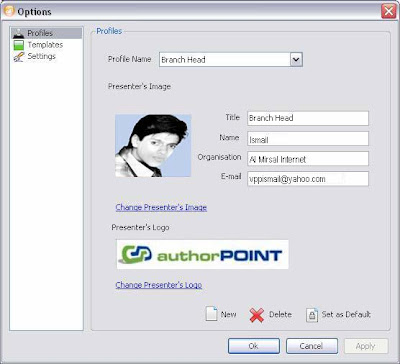
1. Profile Tab: The Profile tab lets you create your profile so that you can personalize your output. Here you can create multiple profiles, add your personal image, and display your logo too.
2. Templates Tab: The Template tab gives you a variety of options to select the layout and the color of the output according to your preference
3. Settings Tab: The Settings tab allows you to make some default quality- and conversion settings for your output.
Profile Tab:
1. Profile Tab: The Profile tab lets you create your profile so that you can personalize your output. Here you can create multiple profiles, add your personal image, and display your logo too.
2. Templates Tab: The Template tab gives you a variety of options to select the layout and the color of the output according to your preference
3. Settings Tab: The Settings tab allows you to make some default quality- and conversion settings for your output.
Profile Tab:

1. To create a new profile, hit the button marked ‘New’ (below in the window).
2. The ‘New Profile Name’ window pops up.

2. The ‘New Profile Name’ window pops up.
* Enter the name of the profile you intend to create.
* Click on ‘Ok’
3. Enter a title that signifies your role or position in the presentation.
4. Enter your Name, Organization, and the Email address.
5. You can add your image and logo by clicking on the ‘Add Presenter’s Image’ and ‘Add Presenter’s Logo’ respectively.
6. To mark the current profile as the default profile for the subsequent presentations, click on the ‘Set as Default’ button.
7. Click on ‘Ok’.
8. To delete a profile, you can select the profile from the drop down menu in ‘Profile Name’ field, and click on the button marked ‘Delete’.
Template Tab:
The templates tab opens up displaying a variety of choices for you so that you can effortlessly customize the look and feel of the output.

* Click on ‘Ok’
3. Enter a title that signifies your role or position in the presentation.
4. Enter your Name, Organization, and the Email address.
5. You can add your image and logo by clicking on the ‘Add Presenter’s Image’ and ‘Add Presenter’s Logo’ respectively.
6. To mark the current profile as the default profile for the subsequent presentations, click on the ‘Set as Default’ button.
7. Click on ‘Ok’.
8. To delete a profile, you can select the profile from the drop down menu in ‘Profile Name’ field, and click on the button marked ‘Delete’.
Template Tab:
The templates tab opens up displaying a variety of choices for you so that you can effortlessly customize the look and feel of the output.
1. The ‘Select Color’ field offers a range of six colors (Blue, Brown, Dark Green, Green, Purple, and Silver) for you to choose. Select the color of your preference from the drop down menu.
2. Select the preferred layout from the ‘Select Layout’ field. Here you have three layouts available. These are E-learning Standard, E-learning Compact, and Trade Show.
3. To mark the selected layout and color as default template for the subsequent presentations, click on the button marked ‘Set as Default’.
4. Click on the button marked ‘Ok’.
Settings Tab:

2. Select the preferred layout from the ‘Select Layout’ field. Here you have three layouts available. These are E-learning Standard, E-learning Compact, and Trade Show.
3. To mark the selected layout and color as default template for the subsequent presentations, click on the button marked ‘Set as Default’.
4. Click on the button marked ‘Ok’.
Settings Tab:
1. You can see a slider in the ‘Image Quality’ field. This slider depicts the image quality level, with higher quality towards right. Adjacent to it is a selection box wherein you can select the preferred level of image quality. As you make your choice, the Image quality slider gets adjusted accordingly, and vice-versa.
2. Go to ‘Audio Quality’ field. You have five quality parameters available in a drop down menu ranging from Very High to Very Low. Select the preferred level of audio from the drop down menu made available there. The selection that you make here goes for all the converted presentations.
3. Choose from two options available in ‘Narrations/ Rehearse timings’ field. These are
* ‘Use if found’, that is use Narrations/ Rehearse timings as they are in the original PowerPoint’ and
* ‘Do no use’ that is do not use Narrations/ Rehearse timings included in the original PowerPoint
This ensures that authorPOINT Lite keeps/discards (as per your choice) the rehearse timings/ narrations of all the presentations that are converted into flash and show the same in the output.
4. Check the checkbox in ‘Speaker Notes’ field. It ensures that all the presentations that are converted subsequently show speaker notes in the output.
5. The ‘Default Location for Presentations’ field displays the default location wherein your presentations will be saved.
a. To change the same, click on the button marked ‘Change’.
b. The ‘Browse for Folder’ window opens up. Select the preferred location and click on ‘Ok’.
c. The selected location will now be displayed in the ‘Default Location for Presentations’ field.
STEP THREE Edit the Flash Output
Once a presentation is successfully converted, you can change certain things about your flash output such as audio and image quality, the presenter's profile and the template for look and feel.
To edit the details of the output, follow the steps below:
1. Select the presentation to be edited from thumbnails list. The selected presentation opens up in the ‘Slide View’ window.

2. Go to ‘Audio Quality’ field. You have five quality parameters available in a drop down menu ranging from Very High to Very Low. Select the preferred level of audio from the drop down menu made available there. The selection that you make here goes for all the converted presentations.
3. Choose from two options available in ‘Narrations/ Rehearse timings’ field. These are
* ‘Use if found’, that is use Narrations/ Rehearse timings as they are in the original PowerPoint’ and
* ‘Do no use’ that is do not use Narrations/ Rehearse timings included in the original PowerPoint
This ensures that authorPOINT Lite keeps/discards (as per your choice) the rehearse timings/ narrations of all the presentations that are converted into flash and show the same in the output.
4. Check the checkbox in ‘Speaker Notes’ field. It ensures that all the presentations that are converted subsequently show speaker notes in the output.
5. The ‘Default Location for Presentations’ field displays the default location wherein your presentations will be saved.
a. To change the same, click on the button marked ‘Change’.
b. The ‘Browse for Folder’ window opens up. Select the preferred location and click on ‘Ok’.
c. The selected location will now be displayed in the ‘Default Location for Presentations’ field.
STEP THREE Edit the Flash Output
Once a presentation is successfully converted, you can change certain things about your flash output such as audio and image quality, the presenter's profile and the template for look and feel.
To edit the details of the output, follow the steps below:
1. Select the presentation to be edited from thumbnails list. The selected presentation opens up in the ‘Slide View’ window.
2. The ‘Slide view’ window displays the slide thumbnails at the bottom and the slide view in the upper section. The Left section of the Slide View window lets you edit the title and notes of a slide by clicking on the links marked ‘Edit Slide Title’ and ‘Edit Notes’ respectively.

3. The right-side section of ‘Slide View’ window displays the presentation’ s details. It has three icons at the bottom.
a. Clicking on the first icon opens up the ‘Presentation Details’ tab. You can add/edit the description and the keyword of the presentation.

a. Clicking on the first icon opens up the ‘Presentation Details’ tab. You can add/edit the description and the keyword of the presentation.
b. When you click on middle icon, the ‘Presenter Information’ tab opens up populated by the default presenter info that you entered through the ‘Options’ window. The changes that you make here will be specific to the selected presentation.


i. You can select a different profile from ‘Profile Name’ page; or
ii. Open up ‘Profile’ tab in Options window by clicking on the link marked ‘Edit Profile’. You can create a new profile therein or even edit the default profile’s info.
c. The third icon stands for ‘Presentation’ s Settings’ tab. The ‘Settings’ tab opens up displaying the default settings from the ‘Options’ window. Remember the changes here will be presentation specific.

ii. Open up ‘Profile’ tab in Options window by clicking on the link marked ‘Edit Profile’. You can create a new profile therein or even edit the default profile’s info.
c. The third icon stands for ‘Presentation’ s Settings’ tab. The ‘Settings’ tab opens up displaying the default settings from the ‘Options’ window. Remember the changes here will be presentation specific.
* Set the quality level for images and audio used in the presentation.
* Select if you need the embedded narrations or rehearse timings of the presentation.
* Check the checkbox in the ‘Speaker Notes’ field if you need speaker notes of the presentation in the output.
* You can customize the output by select the template layout and the color.
4. Click on the button marked ‘Save’ in the toolbar to save the changes.
*************************************************************************
* Select if you need the embedded narrations or rehearse timings of the presentation.
* Check the checkbox in the ‘Speaker Notes’ field if you need speaker notes of the presentation in the output.
* You can customize the output by select the template layout and the color.
4. Click on the button marked ‘Save’ in the toolbar to save the changes.
*************************************************************************
System Requirements for authorPOINT Lite
Before you start converting your PowerPoint presentations to flash using authorPOINT Lite Free, please ensure that you have the following software and hardware pre-requisites on your system.
Software
* Operating System: Microsoft Windows 2000/2003 or XP, Microsoft Windows Vista
* Microsoft PowerPoint: MS PowerPoint XP or MS PowerPoint 2003
* Player: Flash Player 9 or higher
* Supporting Browser: All browsers will support Flash output including Internet Explorer, Netscape, Mozilla/Firefox, and Safari.
* Dotnet framework 2.0
Hardware
* CPU Pentium III or later
* 128 MB RAM (minimum 256 MB recommended)
* Approximately 7 MB of available disk space. Your system hard disk should have sufficient space to maintain your presentations.
License
* FREE
Before you start converting your PowerPoint presentations to flash using authorPOINT Lite Free, please ensure that you have the following software and hardware pre-requisites on your system.
Software
* Operating System: Microsoft Windows 2000/2003 or XP, Microsoft Windows Vista
* Microsoft PowerPoint: MS PowerPoint XP or MS PowerPoint 2003
* Player: Flash Player 9 or higher
* Supporting Browser: All browsers will support Flash output including Internet Explorer, Netscape, Mozilla/Firefox, and Safari.
* Dotnet framework 2.0
Hardware
* CPU Pentium III or later
* 128 MB RAM (minimum 256 MB recommended)
* Approximately 7 MB of available disk space. Your system hard disk should have sufficient space to maintain your presentations.
License
* FREE
